| □ | The Inventory Worksheet Report provides an Inventory List designed to facilitate a manual inventory count. |
| • | To access this report, on the Main Menu Select Reports and Choose Inventory Tracking. |
| • | Click the Inventory Worksheet Option. |
| □ | Inventory Worksheet Report tabs - There are three tabs on the Inventory Worksheet Report dialog. |
| • | Options - Initially only the Options tab is shown (until you make your Options selections and Select Print). |
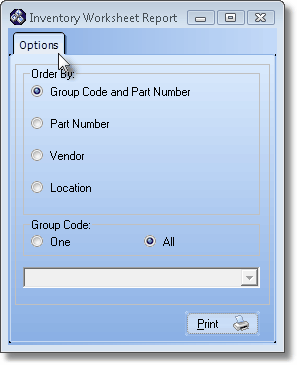
Inventory Worksheet Report defaults
| • | Order By - Establish the sequence in which these Inventory Items will be listed. |
| ▪ | Group Code and Part Number - The default - sorts the Inventory Items by Group Code, then within each Group, by Part Number (Item ID). |
| ▪ | Part Number - Sort the Inventory Items by Part Number (Item ID). |
| ▪ | Vendor - Sort the Inventory Items by Vendor, then within each Vendor, by their Part Number (Item ID). |
| ▪ | Location - Sort the Inventory Items by their Location. |
| • | One/All - Select whether you want One or All of the selected Order By type's data to be listed. |
| ▪ | The field name (Group, Part Number, Vendor or Location) above the Selection List changes based on the Order By selection you made. |
| ▪ | If One is selected, use the Drop-Down Selection List to Choose the Inventory Items in what Group, Part Number, Vendor or Location that you want included. |
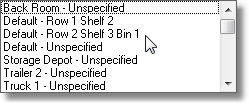
Sample Warehouse Location Selection List
| • | Print - Click the Print button  to Preview and optionally Print (to a File or a Printer) this Inventory Worksheet. to Preview and optionally Print (to a File or a Printer) this Inventory Worksheet. |
| • | Preview - The Preview tab presents the report which resulted from the Options you've selected. |
| • | Up Arrow/Down Arrow - hi - Moves the report one line up, or one line line down, respectively. |
| • | Page Up/Page Down - Moves the report to the previous or next page, respectively. |
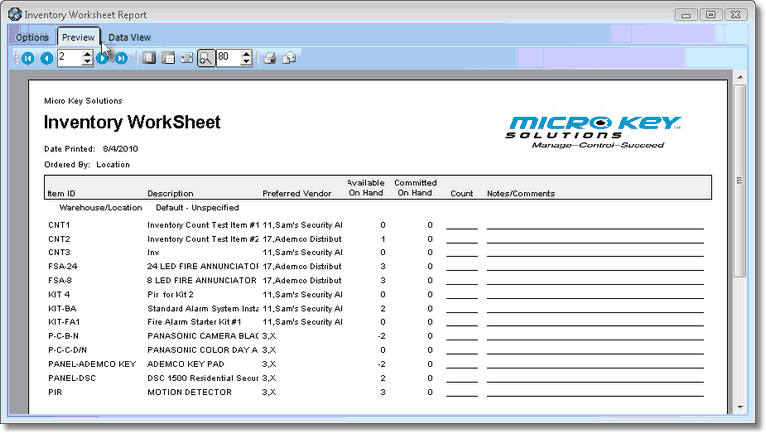
Inventory Worksheet Report Preview
| • | Home -  - Using either the screen icon or your Keyboard's Home key, moves the report to the top of the first page. - Using either the screen icon or your Keyboard's Home key, moves the report to the top of the first page. |
| • | End -  - Using either the screen icon or your Keyboard's End key, moves the report to the bottom of the last page. - Using either the screen icon or your Keyboard's End key, moves the report to the bottom of the last page. |
| • | Arrows - The arrows allow you to move back and forth, from page to page. |
| • | Number - Indicates the page number you are viewing. |
| ▪ | You may also type in a specific page number, Press 8 Enter and that page will be displayed immediately. |
| ▪ | If you enter an invalid page number, it will be ignored. |
| • | Fit To Page - Click the first button after the arrows to size a full page of the report to fit the screen. |
| • | Zoom To 100% - Click the second button after the arrows to display the page at 100% (of the printed view). |
| • | Fit To Page Width - Click the third button after the arrows to size the page of the report to fit the full width of the screen. |
| • | Zoom To Percentage - Click the fourth button after the arrows to re-size the page of the report by percentage. |

| ▪ | When you Click the Zoom To Percentage button, the Percentage selector will be displayed. |
| ▪ | You may then Click the Up or Down ‚ arrows to set the exact amount of Zoom you want. |
| • | Print - Click the Print button to Print (to a File or a Printer)  the displayed Inventory Worksheet. the displayed Inventory Worksheet. |
| • | Email - Click the Email button  to send the Report to an Email Address of your choosing. to send the Report to an Email Address of your choosing. |
| • | Data View - This view provides a tabular (spreadsheet style) presentation of the selected data. |
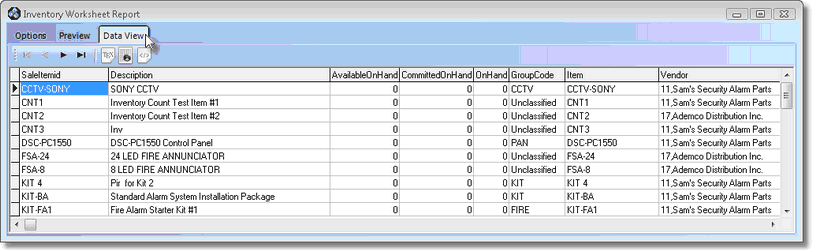
Inventory Worksheet Report Data View
| • | Arrows - Click the arrows to move through the record. |
| • | Export - Exporting the data from this Data View Form (note the "fly-over" help available on these buttons): |
| ▪ | Export to CSV - Click the first button after the arrows to export the data to a Comma Separated Values (CSV) file format. |
| ▪ | Export To Excel - Click the second button after the arrows to export the data to an Excel (.xls) file format. |
| ▪ | Export To Html - Click the third button after the arrows to export the data to an HTML formatted file. |
| • | Exit the Form by Clicking the Close button x on the right at the top of the Form. |

